
Before you start
Connecting Franklin to ChatGPT lets you ask about your card transactions, right in the ChatGPT desktop app. It uses Franklin's MCP server, which is in beta. ChatGPT on the web and on your phone can't connect to Franklin yet.
You need:
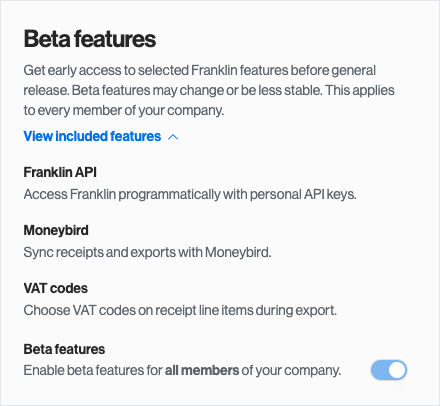
- Franklin API access switched on for your company. An owner or admin turns it on under Settings → Beta features. This switches on all Franklin beta features for your company. Or contact Franklin support and we'll enable it. It is included on every plan.
- The ChatGPT desktop app on your computer. It works on the free ChatGPT plan too.
- A Franklin API key for each company you want to connect (Step 1).
Quick answers
| Question | Answer |
| MCP server URL | https://api.hifranklin.com/mcp |
| Where it works | The ChatGPT desktop app. Codex CLI and the Codex code editor extension can use it too (see the alternative below) |
| ChatGPT on the web or phone | Not yet |
| How it authenticates | Your Franklin API key, added as an Authorization header in the app's MCP settings |
| Several companies | Each API key belongs to one company, so add one server per company |
| Full API reference | api.hifranklin.com/docs |
Step 1: Create an API key in Franklin
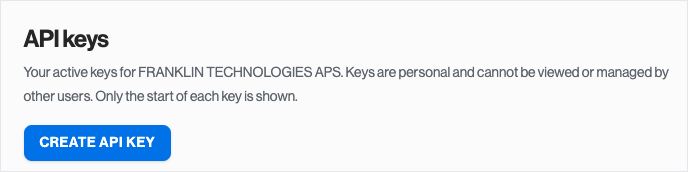
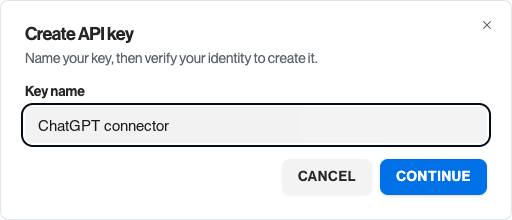
- In Franklin, go to Settings → API keys and click Create API key. Give the key a name, click Continue and verify your identity with the one-time code from your email or authenticator app.
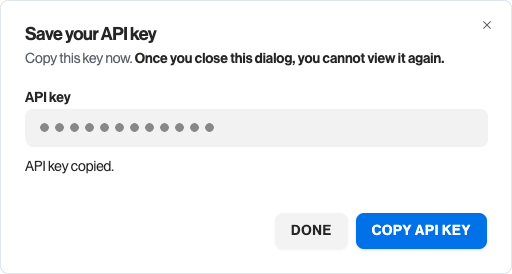
- Copy the key and keep it somewhere safe. It is shown only once: after you close the dialog, you cannot view it again.
Each key is personal and belongs to one company. Nobody else in your company can see or manage it. Keys expire automatically 180 days after you create them, and you can see the date under Expires. You can have up to 10 active keys per company.
Step 2: Add Franklin in the ChatGPT desktop app
- Click your name at the bottom left and choose Settings. On a Mac you can also press ⌘,.
- Under Integrations, open Plugins and choose the MCPs tab.
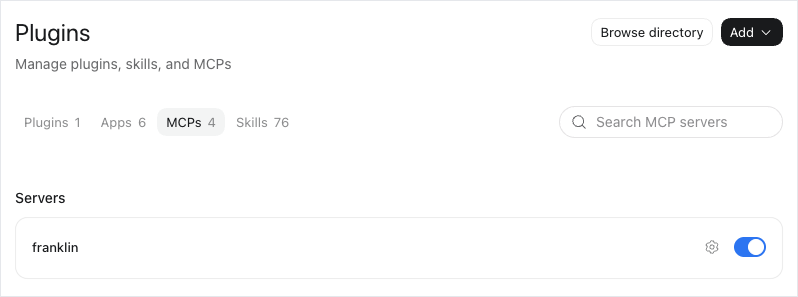
- Click Add server. On some versions the button is called Add and sits at the top of the page.
- Name it franklin, choose Streamable HTTP as the type and paste the URL
https://api.hifranklin.com/mcp. - Under Headers, enter Authorization as the key and
Bearer YOUR_API_KEYas the value. Type Bearer, one space, then the key, with no quotes or spaces after it. Leave Bearer token env var empty.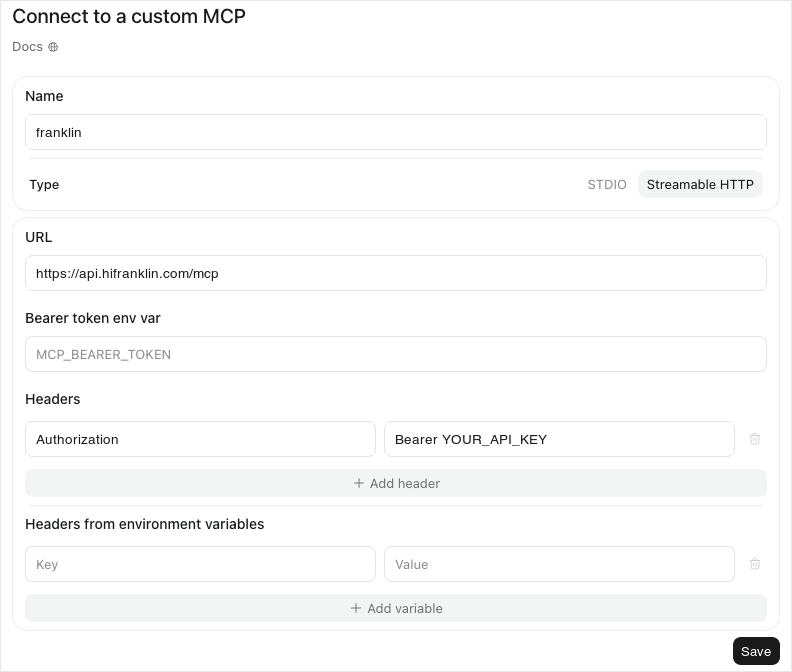
- Click Save. Franklin now shows under Servers with its switch on.
Good to know: The connection only works in the ChatGPT desktop app on the computer where you set it up. ChatGPT saves the header in a settings file on that computer.
Step 3: Check that it works
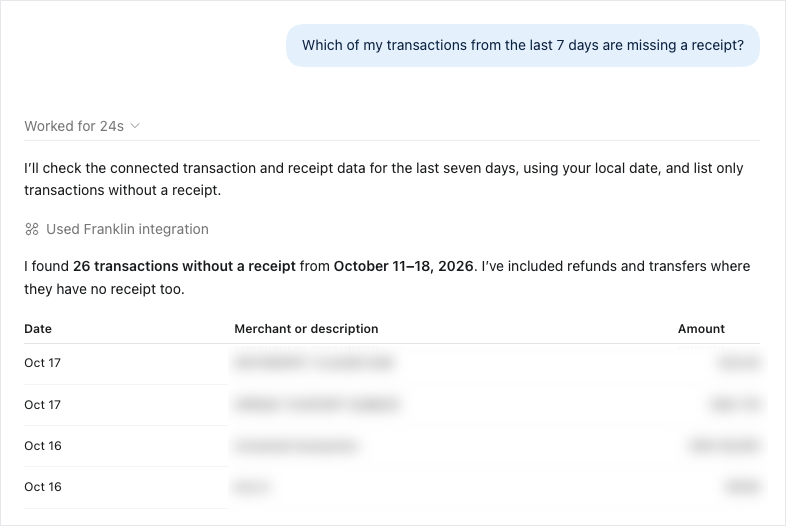
Start a new chat and ask something like "Which of my transactions from the last 7 days are missing a receipt?" If ChatGPT asks for permission to use Franklin, allow it. When it fetches your data, the answer shows Used Franklin integration.
Working with several companies
Each API key is locked to one company and can never see another. Add one server per company, each with its own name and key, for example franklin-company-a and franklin-company-b. Mention the company in your request so ChatGPT uses the right one.
Try it
Ask something like:
- "Which transactions from the last 30 days are missing a receipt?"
- "Do any suppliers look like they charged us twice this month?"
- "Which suppliers did we spend the most with last month?"
What ChatGPT can do: see which company the connection belongs to, list and read your transactions, including amount, merchant, date, card, note, bookkeeping account and how many receipts are attached.
What it cannot do yet: set the bookkeeping account or VAT code on a transaction, see transactions older than 90 days or hidden in the app, show your account balance, see cards or top-ups, see receipt details, download receipt files or attach receipt files reliably. Upload receipts in the Franklin app, forward them to your Franklin receipt email, or use the REST API if you're technical. It never moves money and never sees full card numbers.
Alternative: Codex CLI or a config file
If you use Codex CLI or the Codex code editor extension, add Franklin to the file .codex/config.toml in your home folder instead. The ChatGPT desktop app reads the same file.
[mcp_servers.franklin]
url = "https://api.hifranklin.com/mcp"
http_headers = { "Authorization" = "Bearer YOUR_API_KEY" }
Save the file and restart the app. On a Mac you can open the file by running open -e ~/.codex/config.toml in Terminal.
ChatGPT on the web and on your phone
ChatGPT on the web and on your phone can only connect to services through a sign-in flow. Franklin uses API keys today, so they can't connect yet.
Troubleshooting and security
| Problem | What to do |
| Franklin isn't listed under Servers | Add it again under Settings → Plugins → MCPs, and check the type is Streamable HTTP |
| Franklin is listed but can't connect | The key wasn't accepted. Check the Authorization header reads Bearer, one space, then the key, with nothing after it |
| It stopped working after a while | The key expired after 180 days or was revoked, your access to that company ended, or Beta features was turned off. Create a new key and update the header |
| No API keys section in Franklin settings | The Franklin API is not on for your company. Ask an owner or admin to turn on Settings → Beta features, or contact Franklin support |
Keep keys secret. Treat an API key like a password and never paste it into a chat. If a key is lost or shared, revoke it under Settings → API keys in Franklin and create a new one.
Disconnect anytime. Switch Franklin off or remove it under Settings → Plugins → MCPs in ChatGPT, or revoke the key in Franklin.
Still stuck? Contact Franklin support and tell us which app you used.